Security Settings
Configure security policies for your platform, including two-factor authentication (2FA), email verification, session management, and access controls.
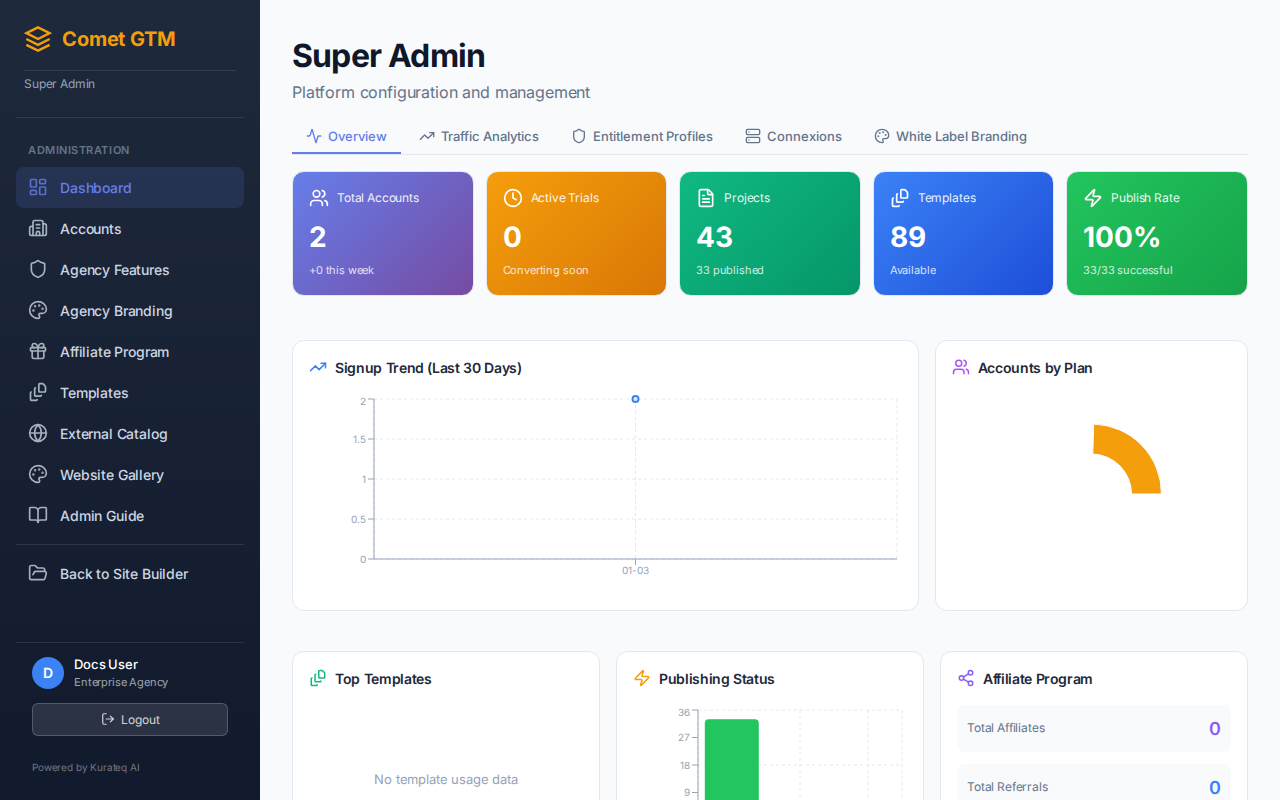
Configure security policies from the Admin Settings panel
Authentication Security
Comet GTM implements multiple layers of authentication security to protect user accounts.
Secure by Default
Password reset and invitation acceptance flows include email verification to ensure account security.
Email Verification Flows
| Flow | Description | Token Expiry |
|---|---|---|
| Password Reset | Secure token sent via email to verify identity | 1 hour |
| Invite Acceptance | Unique invitation link with verification token | 7 days |
Email Branding by Tier
System emails are branded based on the account's subscription tier:
| Plan Tier | Email Branding |
|---|---|
| Free / Standard / Pro | Comet GTM default branding |
| Enterprise / Agency | Custom workspace branding (if configured) |
Initial Onboarding Exception
The first onboarding email for any user always uses Comet GTM branding, regardless of tier.
Password Requirements
Secure password policies are enforced for all user accounts:
- Minimum Length - At least 8 characters required
- Secure Storage - Passwords are hashed using bcrypt
- Reset Tokens - One-time use tokens with automatic expiry
Session Management
Control how user sessions are managed:
| Setting | Default | Description |
|---|---|---|
| Session Timeout | 24 hours | How long until inactive sessions expire |
| Remember Me Duration | 30 days | Extended session for "Remember Me" option |
| Token Type | Opaque | Secure, non-predictable session tokens |
Security Features
- Opaque Session Tokens - Non-predictable tokens that can't be guessed or forged
- Generic Error Messages - Security-sensitive flows show generic errors to prevent enumeration
- Rate Limiting - Automatic rate limiting on authentication endpoints
- Secure Cookies - HTTPOnly, Secure, SameSite cookies for session management
Login Security
Failed Login Protection
Protect against brute force attacks:
- Account Lockout - Lock account after 5 failed attempts
- Lockout Duration - 30 minutes (configurable)
- IP-Based Rate Limiting - Limit login attempts per IP address
- Exponential Backoff - Increasing delays after failed attempts
Activity Logging
All security events are logged for audit purposes:
- Successful and failed login attempts
- 2FA setup, verification, and failures
- Password changes and resets
- Permission and role changes
- Account lockouts and unlocks
- Session creation and termination
Role-Based Access Control
Control what different user roles can access:
| Permission | User | Admin | Super Admin |
|---|---|---|---|
| Create/Edit Projects | Yes | Yes | Yes |
| Publish Sites | Yes | Yes | Yes |
| Manage Business Profile | Yes | Yes | Yes |
| Invite Users | No | Yes | Yes |
| Manage Users | No | Yes | Yes |
| Configure Plans | No | No | Yes |
| System Settings | No | No | Yes |
| Manage Templates | No | No | Yes |
Invitation-Based Onboarding
Users can only join the platform via admin invitation:
- No Public Registration - Users cannot self-register
- Invitation Expiry - Invitations expire after 7 days
- Single Use - Each invitation can only be used once
- Email Verification - 2FA code required to complete invitation acceptance