Business Profile
Your Business Profile stores your company information and automatically populates it across all your websites. Set it up once, use it everywhere.
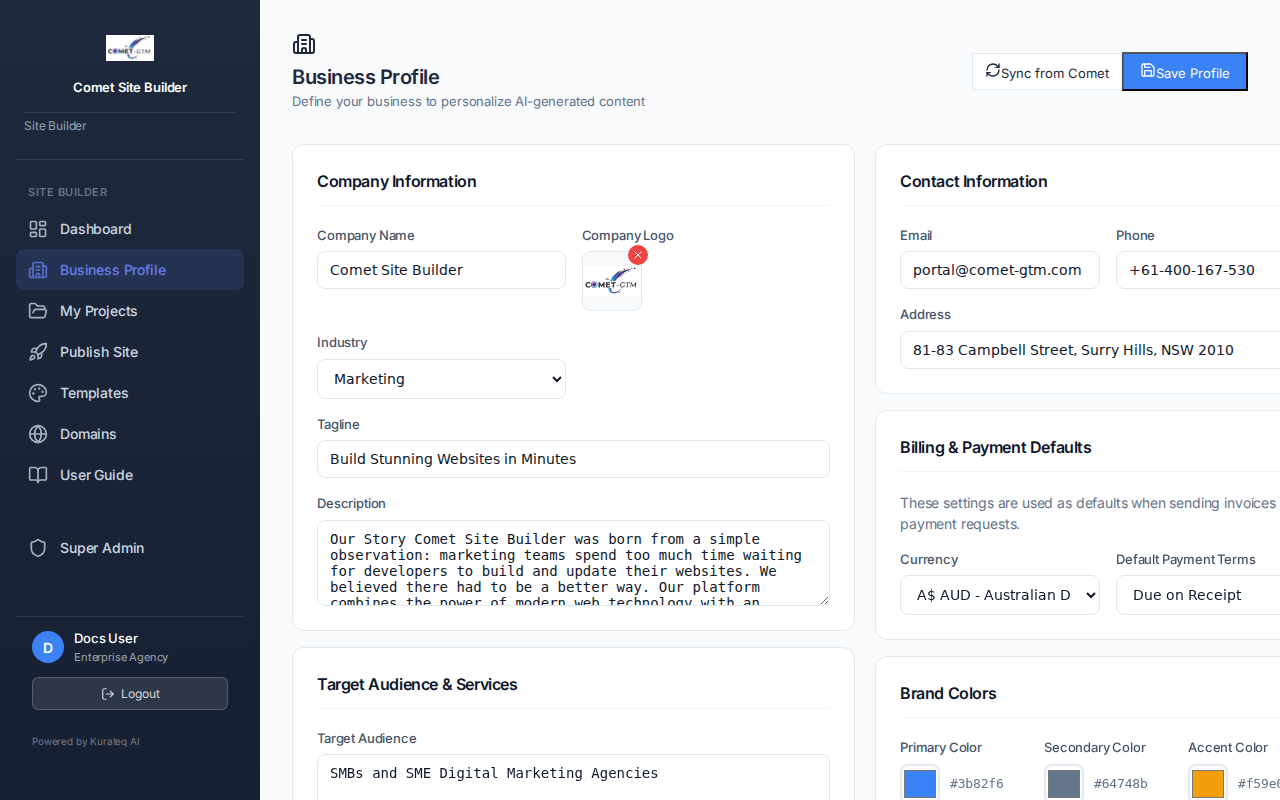
What Information to Include
| Field | Description | Used For |
|---|---|---|
| Company Name | Your official business name | Footer, copyright notices, SEO |
| Logo | Your company logo image | Navbar, footer, favicon |
| Industry | Your business category | AI content suggestions, stock photos |
| Phone | Contact phone number | Footer contact column |
| Contact email address | Footer contact column | |
| Address | Physical business address | Footer contact column, structured data |
| Social Links | Facebook, Twitter, LinkedIn, etc. | Footer social icons |
| Business Hours | Operating hours | Footer, structured data |
Setting Up Your Business Profile
Navigate to Business Profile
From your Dashboard, click on "Business Profile" in the sidebar navigation.
Fill in Your Details
Enter your company name, contact information, and upload your logo.
Select Your Industry
Choose your industry category. This helps AI generate relevant content and select appropriate stock photos.
Add Social Links
Add links to your social media profiles. These will appear as icons in your footer.
Save Changes
Click "Save" to store your profile. Changes will reflect on your next publish.
Syncing to Navigation and Footer
In the Editor, you can pull your Business Profile data directly into your navigation bar and footer blocks with one click.
Select Your Navbar or Footer Block
In the Editor, click on the navigation bar or footer block to select it.
Click "Sync from Business Profile"
In the right panel, you'll see a green button labeled "Sync from Business Profile". Click it to pull in your company name, logo, and contact details.
Apply to All Pages
Click the "Apply to All Pages" button to sync your navigation and footer across every page of your site automatically.
Auto-Population Features
Your Business Profile information is automatically used in several places:
Navigation Bar
When you sync from Business Profile, your navbar displays:
- Your company logo (if uploaded)
- Your company name
- Navigation links to all your pages
Footer Contact Column
When you add a footer to your page, the "Contact" column automatically displays:
- Your phone number (clickable on mobile)
- Your email address (mailto link)
- Your physical address
Industry-Based Stock Photos
When you add image blocks to your pages, the system uses your industry to suggest relevant stock photos. For example:
- Restaurant - Food, dining, kitchen photos
- Real Estate - Properties, homes, interior design
- Technology - Computers, software, modern offices
- Healthcare - Medical, wellness, professional settings
SEO and Structured Data
Your business information is included in the structured data (JSON-LD) on your published pages:
- Organization name and logo
- Contact information
- Social media profiles
- Business hours (if provided)
Billing Defaults
If you use invoicing features, your Business Profile also stores:
- Default Currency - AUD, USD, EUR, etc.
- Payment Terms - Net 7, Net 14, Net 30, etc.
- Tax Settings - GST/VAT registration details