Publishing Your Site
Make your website, funnel, or landing page live for the world to see. Your site is deployed to a global CDN for fast loading anywhere.
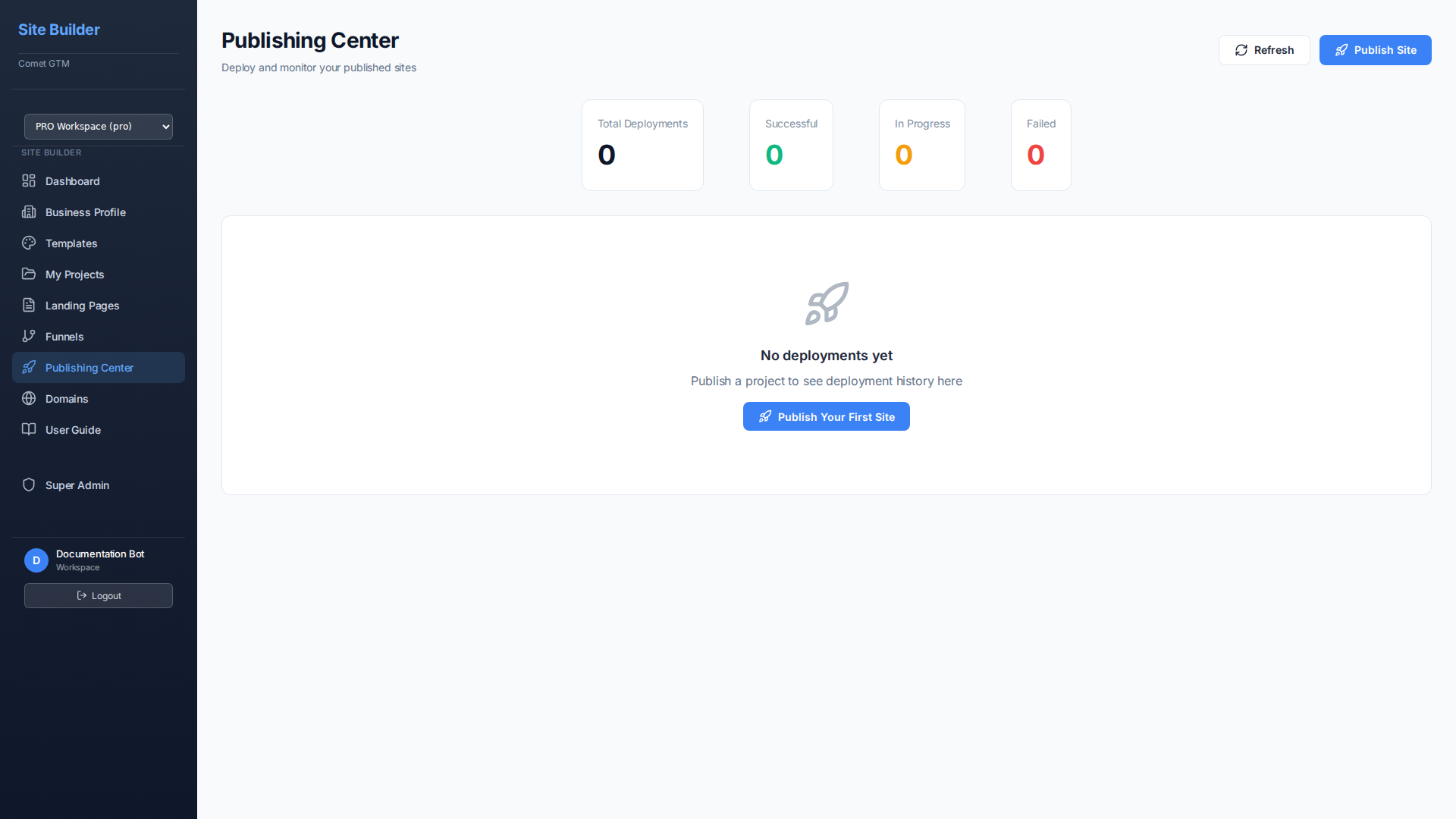
Publishing Workflow
The publishing process ensures your site is built correctly and deployed to our global infrastructure:
Preview Your Site
Click Preview to see exactly how your site will appear to visitors. Test on desktop, tablet, and mobile views.
Click Publish
When you're ready, click the Publish button in the top toolbar or go to the Publishing Center.
Build Process
The system builds an optimized version of your site with all SEO elements. This typically takes 30-60 seconds.
CDN Deployment
Your site is deployed to our global CDN (Content Delivery Network) for fast loading worldwide.
Site is Live
Your site is now accessible at its URL. Share the link with your audience!
What Gets Published
When you publish, the following is automatically generated and deployed:
All Pages
Every page in your project with optimized HTML, CSS, and JavaScript.
Media & Assets
Images, videos, and other uploaded files served from our CDN.
SEO Elements
Sitemap, robots.txt, meta tags, and structured data.
SEO Infrastructure
Published sites include comprehensive SEO elements automatically:
| Element | Description | Generated |
|---|---|---|
| sitemap.xml | XML sitemap listing all pages for search engines | Automatic |
| robots.txt | Instructions for search engine crawlers | Automatic |
| Open Graph | Facebook/LinkedIn sharing metadata | Automatic |
| Twitter Cards | Twitter sharing metadata | Automatic |
| Canonical URLs | Prevents duplicate content issues | Automatic |
| JSON-LD | Structured data for rich snippets | Automatic |
Publish Status
| Status | Meaning |
|---|---|
| Published | Your site is live and matches your latest edits |
| Changes Pending | You have unpublished changes since last publish |
| Draft | Site has never been published |
| Building | Publish in progress, site being built |
| Failed | Publish failed - check for errors |
Site URLs
When you publish, your site is available at:
your-project.comet-sites.com
Pro, Enterprise, and Agency plans can connect custom domains for professional branding. See Domains for setup instructions.
Unpublishing
Need to take your site offline? You can unpublish from the Publishing Center:
- Go to Publishing Center from the sidebar
- Click Unpublish
- Confirm that you want to take the site offline
Troubleshooting
Publish Failed
If your publish fails, check for:
- Missing required content (empty pages)
- Broken image links
- Invalid form configurations
Changes Not Showing
If your published site doesn't show recent changes:
- Make sure you clicked Publish after making changes
- Clear your browser cache or try incognito mode
- Wait a few minutes for CDN propagation (usually under 1 minute)